
NoddPilot
Docs for new pilots

NoddPilot Wiki

The full manual: setup in five minutes, every hotkey, building a combat routine, reading the radar, loot filters, ESP32 hardware, plans and Discord, and the fixes for the problems people actually hit.
Start here

Getting started

Account → launcher → attach → START. About five minutes, end to end.

  1. Register + verify emailFree during Open Beta
  2. Run the launcherFrom your account page
  3. Attach to PoE2Game running and focused
  4. Press STARTF8 toggles it from in-game

Create an account

Register on the website and verify your email. While Open Beta is live, every registered account gets full access for free. No payment needed to try everything.

  • The website and the Windows app share one login: same email, same password.
  • Email verification is required before you can buy a plan, so verify early.
  • After Open Beta, access continues via a day pass, a monthly seat, or a lifetime license. See the Account & plans section below.

Download and run the launcher

Your account page has the download. It's a small launcher, not the full app. Run it, sign in, and it downloads NoddPilot and keeps it up to date from then on.

  • There is no license key to paste anywhere. Signing in is the activation.
  • Updates are automatic: the launcher and the app itself both keep you on the latest build.
  • Windows only. If SmartScreen prompts on first run, choose “More info” → “Run anyway”.

Attach and press START

Start Path of Exile 2, then NoddPilot. The app attaches to the running game; once attached, the Auto-Pilot tab has one big master button that starts everything at once.

  • The bot only acts while PoE2 is the focused, foreground window. Alt-tab away and it pauses on its own.
  • First session: turn on Auto-Flask and the radar overlay, watch a fight or two, then add Combat, Auto-Pickup, and Explore once you've built your skill routine (see Combat below).
  • Set your flask keys and dodge key before leaving it alone; the defaults can't know your keybinds.
Learn these first

Hotkeys

Five keys control everything from inside the game. No alt-tabbing needed.

The keys

All of these work while Path of Exile 2 has focus, so you never have to click over to the NoddPilot window mid-run.

  • F8: master toggle. Flips every Auto-Pilot system on or off at once. Rebindable on the Auto-Pilot tab.
  • F7: Boss Mode. Combat locks onto unique enemies only, reacts at its fastest, and stops exploring. Press before a boss, press again after.
  • F9: emergency logout. Instantly disconnects your character. This is the “get me out NOW” button.
  • TAB: shows/hides the in-game radar overlay.
  • Hold ESC: pauses the bot for as long as you hold it. Release to resume.

About TAB

While NoddPilot is attached, it claims the TAB key system-wide for the overlay toggle, so the game itself won't see TAB presses. That's intentional, not a bug.

  • If you use TAB for something in-game, rebind that action in PoE2's settings while botting.
  • TAB returns to normal as soon as NoddPilot closes or detaches.

If a hotkey doesn't fire

Another program may have claimed the same key first. A conflict never breaks anything; the key just does nothing.

  • Every hotkey has an on-screen equivalent: the master button, the boss-mode toggle, the logout button, and the overlay switch all live in the app.
  • The master toggle is the one rebindable key. Change it on the Auto-Pilot tab if F8 clashes.
One button

Auto-Pilot

The master switch. One button runs flasks, combat, looting, and exploring together, with a live feed of what it's doing and why.

  1. SurviveFlasks and dodging, always
  2. FightCombat owns the mouse
  3. LootWhen the area is safe
  4. ExploreToward unvisited ground

How it decides what to do

Auto-Pilot runs on a strict priority: staying alive always comes first, fights beat looting, and exploring fills the quiet moments.

  • Auto-Flask never stops; it keeps watching your vitals even mid-fight and mid-pickup.
  • Combat and Auto-Pickup take turns with the mouse; if enemies are up, combat wins and looting waits.
  • Explore only moves when there's nothing to fight and nothing worth grabbing, so it never drags you out of a fight.

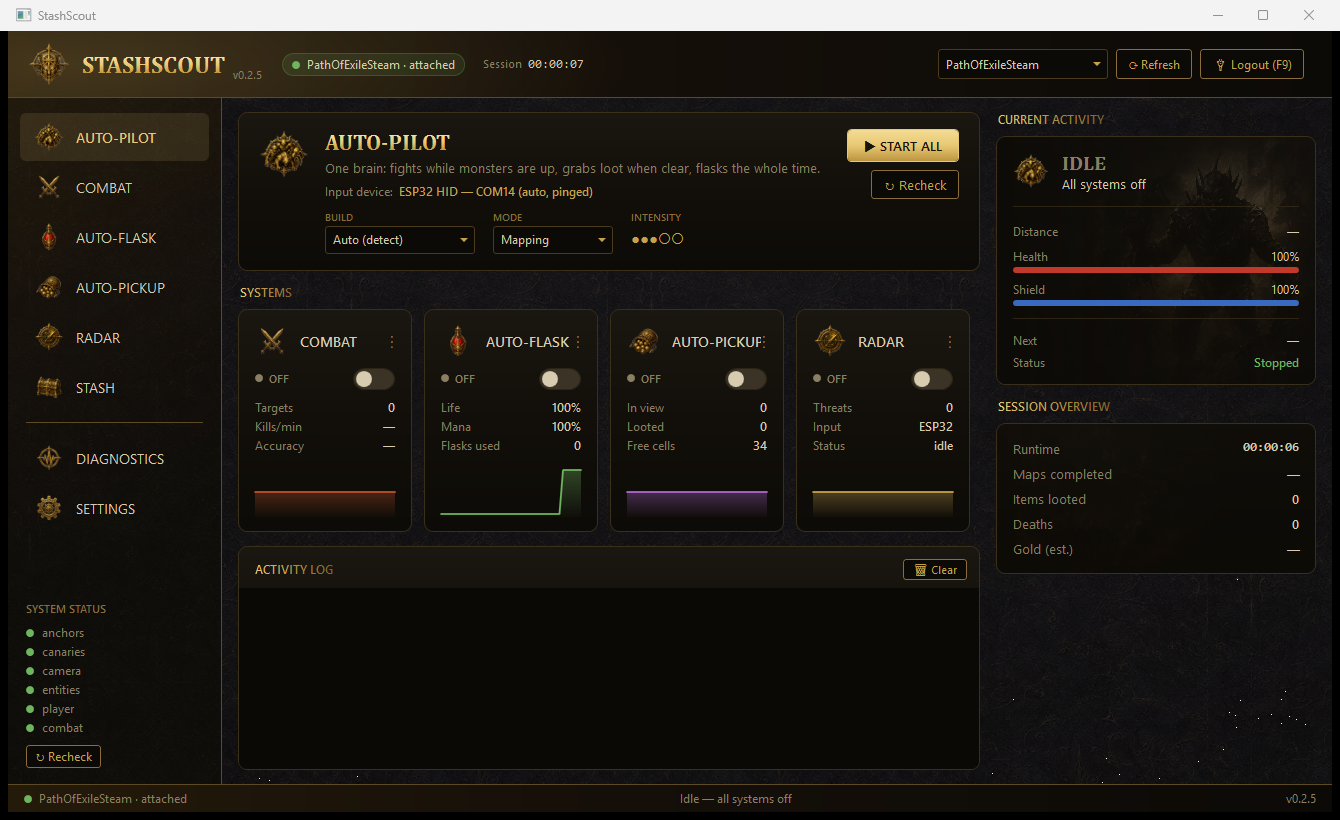
The dashboard

One card per system (Auto-Flask, Combat, Auto-Pickup, Explore), each with its own enable switch and live counters, plus an activity log that narrates every decision as it happens.

  • The “Current activity” panel shows the verb and the target (for example, “fighting X”, “walking to Y”), so you can tell at a glance whether it's stuck or thinking.
  • The input-device readout shows what's driving the game: built-in Windows input, or your ESP32 board with its COM port.
  • Individual systems can stay off: run just flasks and the radar on a build you're piloting yourself, or everything at once.

Exploring and moving between areas

Explore reads the terrain and pushes toward ground you haven't visited, opening doors along the way, until the area is cleared.

  • “Walk to zone exits when clear” (on the Combat page, under Safety gates) decides what happens after a full clear: on, it heads to an area exit and takes the transition; off, it finishes the area and waits for you.
  • It avoids re-walking ground it's already covered: the radar's visited overlay shows exactly what it considers done.
  • Explore pauses automatically in your hideout and in town.
AUTO-PILOT · dashboard
The Auto-Pilot dashboard: one START button, a card per system, and a live activity feed.
Fight loop

Combat

Picks the most dangerous nearby enemy, moves into range, and runs the skill rotation you build, or just fires while you drive.

  1. Spot a threatFiltered by your rarities
  2. Move into rangeClick, MoveOnly, or WASD
  3. Run your cardsTop to bottom, each attack
  4. Next targetOr back to exploring

Full auto vs. combat-only

By default combat handles everything: targeting, movement, dodging, and your rotation. The “Combat only” checkbox switches to a lighter mode where you keep the wheel.

  • Combat only = the bot aims and fires your rotation at whatever's in range while YOU move and dodge. Great for builds or players that hate automated movement.
  • Engage rarities let you skip trash: tick Unique/Rare/Magic/Normal to choose what's worth fighting.
  • Leash range caps how far it will chase; priority bias tunes whether it prefers close targets or dangerous ones.

Routine Builder

Your rotation is a stack of skill cards, tried top to bottom on every attack. Each card has its own key, range, and firing rules, and saving applies changes to a live fight instantly.

  • Per card: key binding, skill range, Hold (keep the key pressed instead of tapping), a cooldown timer, “once per target”, and a minimum-enemies-nearby threshold.
  • Drag the ⠿ handle (or use ▲▼) to reorder; put your buffs and big hitters on top.
  • “Detect from game” can suggest skills, but adding cards by hand is still the most reliable path: detection never overwrites cards you made yourself.
  • Multiple routines can be saved, duplicated, and switched per character or build.

Movement styles

Three ways for combat to move your character. Pick the one that matches your build in the Movement panel.

  • ClickToMove: left-clicks the ground. The default; works for everyone.
  • MoveOnly: holds your in-game “Move Only” bind while clicking, so a click can never misfire an attack. Set the same key in both PoE2 and NoddPilot.
  • WASD: holds W/A/S/D toward the target. Needs PoE2's keyboard-move setting turned on (and, on ESP32, the current firmware; reflash from Settings if you're on an old one).
RecommendedFor best performance right now, use WASD: set PoE2 to keyboard movement (Options → Input → Input Method) and set NoddPilot to WASD (Combat → Movement → WASD). ClickToMove does work, but it's our least-tested movement lane at the moment.

Dodging

Combat watches nearby enemies for heavy and charged attacks and rolls away from real danger, rather than dodging on a timer.

  • Click the dodge box and press your in-game dodge-roll key (Space by default) to teach it your bind; the ✕ button disables dodging entirely.
  • Roll cooldown limits how often it will dodge, so it can't spend your whole fight rolling.
  • “Live reflex dodge” (experimental, under Safety gates) reacts on a faster path. Start with “confirmed wind-ups only”, which only fast-dodges clearly telegraphed attacks, before enabling the full version.

Entity blacklist

Some props and objects look like enemies but can't be killed, and the bot can waste time attacking them. The blacklist tells it to ignore them permanently.

  • Pick from the list of nearby entities or type part of a name; capitalization doesn't matter.
  • Blacklisted entities are ignored for attacking, movement, AND dodging.
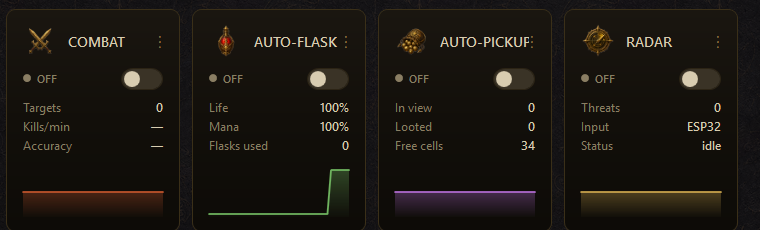
SYSTEM CARDS · live
Live system cards track Combat, Auto-Flask, Auto-Pickup, and Radar while you fight.
See the run

Radar and overlay

A live map of monsters, loot, and terrain drawn over the game. Press TAB to show or hide it. Nearly every layer is a toggle.

What the radar can and can't see

Path of Exile 2 only keeps entities near your character loaded. The radar shows everything the game has loaded, but a monster three screens away may simply not exist yet.

  • Terrain, your route, and the visited/cleared overlay cover far more of the zone than live monsters do: those come from the map itself.
  • If the radar looks empty, walk forward: enemies appear as the game loads them.

Layers and filters

The Map page controls what's drawn: monster rarities, world features, and quick toggles for cutting clutter.

  • Rarity chips (Normal/Magic/Rare/Unique) plus a one-click “Hide Normal” for dense packs.
  • World layers: chests, NPCs, waypoints, exits, shrines, and league objects. Opened chests dim by default and can be hidden entirely.
  • POI markers style the important stuff (waystones, checkpoints, area-exit glow), and quest markers pin the game's own quest objectives on the radar at any distance once discovered.
  • A zone banner fades in with the area name when you enter a new zone.

Loot on the radar

Ground drops appear as pips colored and sized by value, with optional price tags and in-world name labels over the actual items.

  • Prices come from an offline snapshot bundled with the app (values in exalted/divine), so they work mid-map with no web calls.
  • A minimum-value slider hides cheap drops from both the radar and the world labels; unpriced items always show, so a promising base is never hidden by a missing price.
  • Drop alerts can flash a toast over the game when something at or above your chosen value tier hits the ground.
  • “Save loot log” exports the session's valuable drops, with a running total, to CSV + JSON under Documents\NoddPilot\loot-logs.

In-world overlays

Beyond the radar panel, the overlay can draw combat information directly on the game world, lined up with the monsters themselves.

  • Health bars: a rarity-colored HP bar over each living monster (white mobs off by default to cut clutter), with optional nameplates.
  • Danger pulse: a hot ring flashes over any monster actively winding up an attack, so a telegraph inside a pack is impossible to miss.
  • Safe lanes and the range ring: see where the bot plans to escape a swarm and how far your skills actually reach.
  • Reachability is a diagnostic layer: green is ground the bot can path to, red is walkable ground that's cut off (across a river or cliff). Handy when you wonder why a monster is being ignored.

GPU overlay (beta)

The overlay can render on a GPU pipeline at a synced 60fps instead of the standard ~38fps window. It also unlocks the nicer glow effects.

  • Toggle it on the Map page; the overlay reopens itself when switched.
  • Glow FX and the bloom slider only apply on the GPU path.
  • If anything renders oddly on your machine, switch back; the standard overlay is always available.
RADAR · live overlay
YouNormal monsterRare / uniqueElite threatPlanned route
What the in-game radar overlay shows: you at the center, monsters by rarity color, and the route the bot intends to take.
Items

Loot pickup and stash sorting

Auto-Pickup grabs the drops you care about when it's safe; the stash sorter files your backpack into the right tabs back in town.

  1. Drop appearsRadar prices it instantly
  2. Worth it?Your tiers + min value
  3. Safe to grab?Danger radius says go
  4. Walk and pick upStraight into your bag

Auto-Pickup

Walks to matching ground drops and picks them up. You choose what “matching” means with tier toggles and a value floor.

  • Tiers: Unique, Currency, Rare, Gem, High base, Normal, each its own switch.
  • “Min value” (in exalted) filters the priced drops; combine it with the tier switches to grab currency-only, everything, or anything in between.
  • The live panel shows how many matching drops it can see and how much backpack space is left.

Pickup safety gates

Looting is the most vulnerable moment in a run, so pickup has its own guard rails, all on by default.

  • Stop when the inventory is full, instead of clicking at items that can't fit.
  • Pause while a rare or unique enemy is inside the danger radius; no dying over a ring.
  • Pause in hideout and town, where ground clicks would just move you around.
  • If pickups ever look like they're clicking the wrong spot, turn on the click-debug overlay to see exactly where each click is aimed.

Stash sorting

NoddPilot started life as a stash sorter and it's still here: open your stash, and it files backpack items into the tab categories you've set up.

  • One-time setup per league: capture each tab you sort into by typing its name, clicking Add, then hovering that tab in-game. A first-and-last capture can interpolate a whole column of tabs.
  • Captured tabs reset automatically on logout (tab layouts differ per character and league).
  • “Export Stash” can auto-click through every tab to load them, then export the contents.
Don't die

Flasks and staying alive

Auto-Flask watches your life, mana, and energy shield the entire run, and has an emergency exit for the moments flasks can't fix.

  1. Watch vitalsHP, MP, energy shield
  2. Flask on timeHuman-like timing
  3. HP critical?Auto-logout fires
  4. Back in safeYou choose when

Auto-Flask

Set a threshold per vital and a key per flask; when a vital drops below its line, the flask key is pressed with natural, slightly varied timing.

  • Separate thresholds for HP, MP, and energy shield, each with its own live readout so you can sanity-check what the app is seeing.
  • The cooldown between presses is a min–max range, not a fixed timer: presses land like a human's, not a metronome's.
  • Flasks keep running no matter what the other systems are doing. This is the one system that never yields.

Emergency logout

When a fight goes wrong faster than flasks can answer, the app can pull the plug: an instant disconnect at a critical HP line, or manually with F9.

  • “Emergency auto-logout” triggers at the HP percentage you set: the classic hardcore insurance.
  • F9 fires the same logout by hand, from inside the game, any time.
  • Logging out is far faster than any portal. On hardcore, this setting is the whole ballgame.

Death recovery

If your character does die (softcore), the app can click the revive button for you so the run continues unattended.

  • The revive click position is configurable as X/Y screen percentages; resolutions and UI scales differ.
  • Calibrate it once: die, watch where the click lands, and nudge the sliders until it hits the button.
Input device

ESP32 hardware input

Optional: a small USB board that types and clicks as a real physical keyboard and mouse. The app flashes it for you.

  1. Plug in the boardESP32-S3 with native USB
  2. Pick the COM portOn the Settings page
  3. Click FlashEverything is bundled
  4. Auto-detectedThe panel shows ESP32

Do you need one?

No. With no hardware, NoddPilot uses built-in Windows input and works out of the box. The board makes the input come from an actual USB device instead of software.

  • Hardware input lowers the software-input footprint, but it does not make automation risk-free. Read the safety notice below.
  • The Auto-Pilot panel always shows which input method is live; when the board is plugged in and flashed, it's picked up automatically with its COM port shown.
  • Unplug it and the app falls back to Windows input on its own.

Flashing the firmware

The Settings page flashes the NoddPilot firmware onto a Seeed XIAO ESP32-S3 (or another ESP32-S3 board with native USB). Everything needed ships with the app; no Python, no downloads.

  • Plug the board in over USB, pick its COM port from the dropdown, click Flash.
  • If the board doesn't auto-reset into flashing mode, hold BOOT and tap RESET, then try again.
  • When release notes mention a firmware update, re-flash from the same page. WASD movement in particular needs current firmware.
Your account

Account, plans, and Discord

What access costs after Open Beta, how payment works, and what connecting Discord gets you.

Plans

While Open Beta is live, access is free for every account. After that, there are three options; current prices are always on your account page.

  • Day pass: 24 hours of full access. Try before you commit, or top up for a league-start weekend.
  • Monthly seat: a rolling subscription. Seats are capped, so if they're sold out you may need to wait for one to open.
  • Lifetime: pay once, keep access.
  • Pay by card, or with crypto (Bitcoin, Litecoin, Monero). Your email must be verified before checkout.

Connecting Discord

The account page has a Connect Discord button. Sign in to the website first, click it, and approve on Discord: the link completes automatically.

  • While your access is active, you get the Subscriber role and the private channels in our Discord within a few seconds of connecting.
  • Roles sync on their own when your access changes; nothing to re-do after renewing.
  • You can disconnect any time from the same page; it only unlinks the account, nothing else.

The Settings page

The app's Settings tab shows your version, account status, and machine ID, plus a couple of buttons worth knowing before you ever need support.

  • “Open logs folder” and “Open settings folder” jump straight to the app's files: logs are what we'll ask for when you report a bug.
  • Anonymous crash reports (app version, OS, and the error; never your account, email, or machine ID) help us fix crashes; uncheck the box to opt out.
  • The machine ID shown there identifies this PC to your license; support may ask for it.
Fixes

Troubleshooting

The short list, in the order that actually resolves tickets.

  1. Attached?Game must be running
  2. Focused?The bot waits otherwise
  3. Master on?F8 flips everything
  4. Still stuck?Logs + Discord

The bot isn't doing anything

Ninety percent of “it's not working” is one of four states, all visible on the dashboard.

  • Is the app attached to the game? Check the header/status; PoE2 must already be running.
  • Is PoE2 the focused window? The bot deliberately freezes when the game isn't in the foreground.
  • Is the master switch actually on? F8 toggles ALL systems; an accidental press turns everything off silently.
  • Are you holding ESC, or in town/hideout? Both pause movement systems on purpose.

The radar looks empty or wrong

Usually it isn't broken. It's showing you exactly what the game has loaded.

  • Distant monsters don't exist yet as far as the game is concerned; they appear as you approach.
  • Overlay invisible? You may have toggled it with TAB. Press TAB again or use the dashboard's overlay switch.
  • Right after a PoE2 patch, give it time: game updates occasionally need a refresh on our side, and that can briefly look like broken reads. The app updates itself when the fix ships.

Combat behaves oddly

Almost always the routine or a filter, not the combat engine.

  • Attacking an unkillable prop or totem? Add it to the entity blacklist on the Combat page.
  • Ignoring monsters? Check your engage rarities: if Normal is unticked, white packs are skipped by design. The reachability overlay shows if it thinks a monster can't be walked to.
  • Skills not firing? Rebuild the card: key binding, range, and cooldown are per card, and “Detect from game” is a starting point, not gospel. Manual cards are the reliable path.

Reporting a bug

If none of the above fits, grab your logs and tell us in Discord: real logs turn a guessing game into a five-minute fix.

  • Settings → “Open logs folder”. Zip the newest files from the session where it happened.
  • Say what the bot was doing, what you expected, and roughly when: the logs are timestamped.
  • The Discord invite is on your account page and in the site footer.
Terms

Glossary

Words the app uses that aren't obvious on day one.

Around the app

Terms from the dashboard and the activity feed.

  • Auto-Pilot: the master mode running survival, combat, looting, and exploring together under one switch (F8).
  • Boss Mode is the F7 state: unique-enemies-only combat at maximum reaction speed, exploring suspended.
  • Routine / skill card: your rotation. Cards are tried top to bottom each attack; each card is one skill with its own key and rules.
  • Overlay is the layer drawn over the game: radar, health bars, loot labels, alerts. TAB shows/hides it.

Combat and movement

Terms from the Combat page.

  • Leash range: how far combat will chase a target before giving up and coming back.
  • Combat only is the stationary mode: the bot aims and fires, you move and dodge.
  • MoveOnly: PoE2's “move without attacking” keybind; NoddPilot can hold it while clicking so movement clicks never misfire skills.
  • Danger radius: the bubble around rare/unique enemies inside which Auto-Pickup refuses to loot.

The map

Terms from the radar and Explore.

  • Entity bubble: the game only keeps nearby entities loaded; the radar can only show what's inside that bubble.
  • Reachable: ground the bot believes it can walk to from where you stand; red on the reachability overlay means walkable but cut off.
  • Frontier: the edge between explored and unexplored ground; Explore always pushes toward it.
  • Exalted value: loot prices on the radar are quoted in exalted (and divine) orbs, from the bundled offline price snapshot.
Read this

Safety notice

Automation carries account risk. NoddPilot reads the game and plays for you (it never modifies the game), but the risk is yours to accept.

Use at your own risk

Automating gameplay may violate the game's Terms of Service, and enforcement is entirely the game company's call. No tool, ours included, can promise a ban-free existence.

  • Hardware input (the ESP32) reduces the software footprint; it does not make automation risk-free or ToS-compliant.
  • Don't run an account you can't afford to lose.
  • Don't leave a new routine unattended until you've watched it survive, fight, loot, and explore on your own build; every build behaves differently.
After a game patch: if something looks off right after a Path of Exile 2 update, give it a little time before retuning your routine. Updates occasionally need a quick refresh on our end, and that can briefly look like odd bot behavior.