NoddPilot
Docs for new pilots

NoddPilot Wiki

How NoddPilot works: getting set up, Auto-Pilot, combat routines, the radar overlay, looting, ESP32 hardware, and the things worth knowing before you leave a run unattended.

Start here

Getting started

The shortest path from creating an account to a running Auto-Pilot session.

  1. Create account Free during Open Beta
  2. Download the app From your account page
  3. Attach to the game PoE2 running and focused
  4. Press START ESC stops everything

Create an account or sign in

Open Beta access is free for every registered account while the beta is live. When Open Beta ends, the account page offers day-pass, monthly, and lifetime options.

  • Use the same email and password on the website and in the Windows app.
  • Existing accounts keep their login even if public registration is temporarily closed.
  • When Open Beta ends, free beta sessions stop and you can continue with any paid plan.

Download and activate the app

Signed-in accounts with active access can download the latest Windows build from your account page.

  • Install or unzip the client, launch NoddPilot, then sign in from the activation window.
  • Your session stays signed in across launches while your access is current.
  • If your access changes, the app updates the next time it checks in with your account.

Attach, pick systems, press START

Attach to Path of Exile 2, choose the systems you want, then start Auto-Pilot from the dashboard.

  • ESC is the global kill-switch and instantly releases any held keys or mouse buttons.
  • The bot only acts while Path of Exile 2 is the focused, foreground window.
  • Start with Auto-Flask and Radar, then add Combat, Auto-Pickup, and Explore as you tune your routine.
One assistant

How Auto-Pilot works

One assistant decides whether to survive, fight, loot, or explore — instead of you juggling separate toggles.

  1. Survive Flasks and dodge come first
  2. Fight Threats answered in order
  3. Loot Approved drops, when safe
  4. Explore Push into new ground

What it does first

Auto-Pilot reads the live state of your run and acts in a sensible order: stay alive, deal with threats, grab approved loot, then keep exploring.

  • Auto-Flask stays active the entire time.
  • Combat takes over for urgent fights, including close-pack pressure and dodging.
  • Auto-Pickup runs when it's safe, then Explore resumes pushing into new ground.

Reading the dashboard

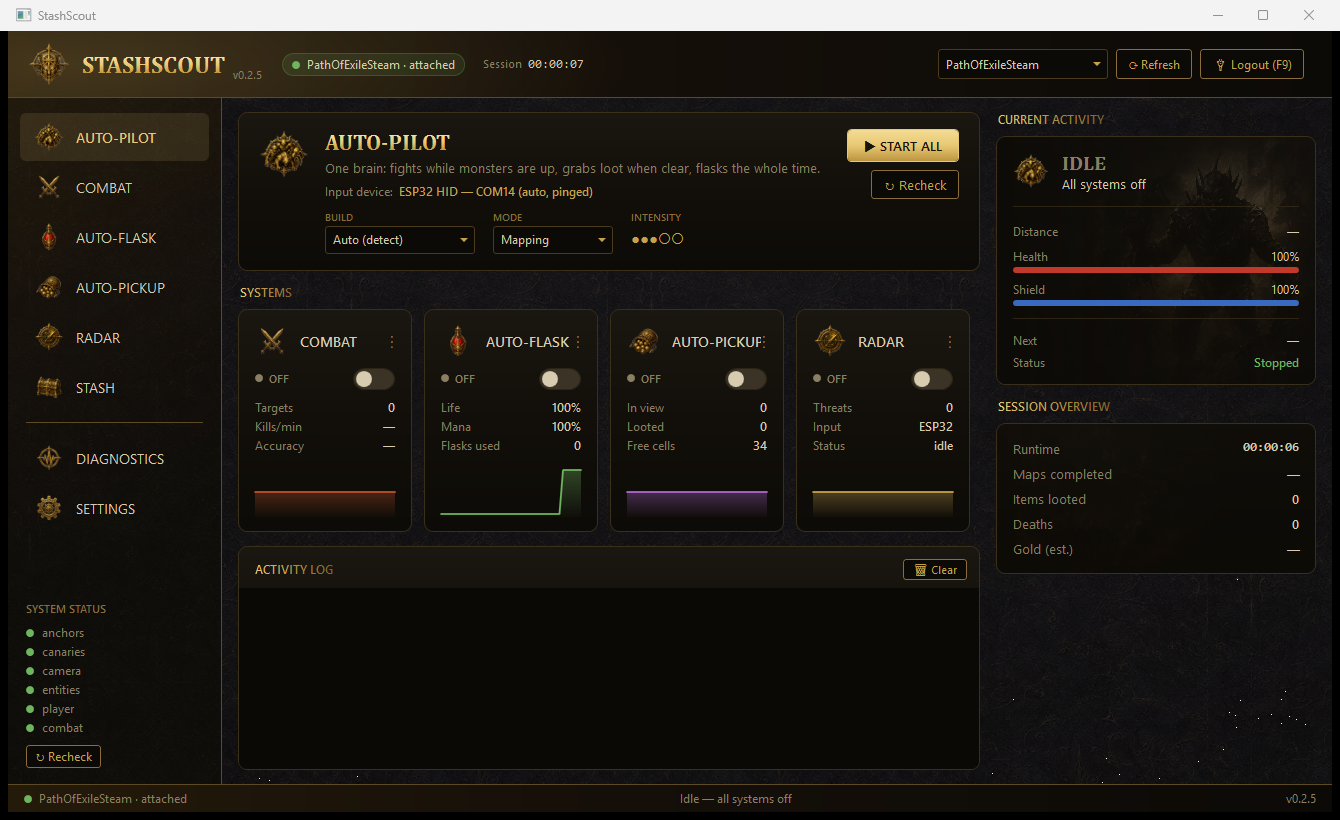
The dashboard and in-game overlay show live status, so you can tell what the bot is doing at a glance without digging through anything.

  • Each system has its own card with an on/off switch and live counters.
  • The activity feed narrates what Auto-Pilot is deciding moment to moment.
  • You can supervise the whole run from one screen, or just let it work.

How it controls the game

NoddPilot can drive the game through Windows directly, or through an optional ESP32 USB device. The active method is shown on the Auto-Pilot panel.

  • With no extra hardware, it uses built-in Windows input and works out of the box.
  • An ESP32 device sends input as a physical USB mouse and keyboard.
  • Either way it is automating gameplay — hardware input lowers detection risk, it does not remove account risk.
AUTO-PILOT · dashboard
The Auto-Pilot dashboard: one START button, a card per system, and a live activity feed.
Fight loop

Combat and routines

Combat finds monsters, paths into range, and runs the skill rotation you build.

  1. Spot a threat Radar flags what's hostile
  2. Path into range Around packs, not through
  3. Run your rotation Skill cards, top to bottom
  4. Next target Or back to exploring

Picking targets

Combat chooses threats from what the radar can see, respects your rarity filters, and avoids charging a far target straight through a dangerous pack.

  • Target lock includes leash distance and priority controls.
  • Decorative, un-spawned, or invulnerable entities are skipped automatically.
  • Heavy rare or unique pressure can trigger panic movement or safer repositioning.

Routine Builder

Routine Builder runs your skill cards top to bottom, each with its own range, key binding, hold behavior, cooldown, once-per-target, and minimum-mob settings.

  • Tune range and movement per build instead of treating every class the same.
  • Drag the cards to reorder your rotation; changes apply live.
  • Skill detection is still being refined, so for now the most reliable setup is to add your skill cards by hand.

Dodge and reactions

Combat watches for incoming attacks and spell wind-ups so dodge can react to real danger rather than guessing.

  • Dodge reacts to attacks aimed at you, with stronger reactions to rare and unique threats.
  • Dodge key, cooldown, and sensitivity are all set on the combat page.
  • You can leave dodge on alongside the rest of your rotation.
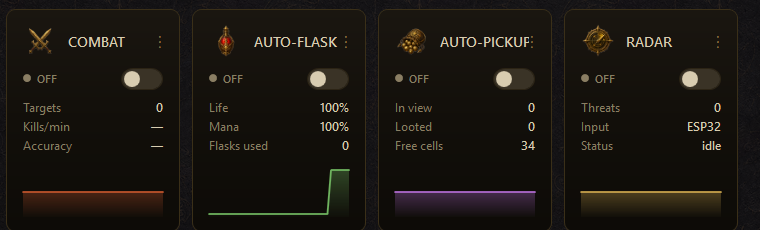
SYSTEM CARDS · live
Live system cards track Combat, Auto-Flask, Auto-Pickup, and Radar while you fight.
See the run

Radar, overlay, and the map

Radar is both a control panel and an in-game overlay: monsters, loot, terrain, your route, cleared ground, and live status.

What the radar can see

Path of Exile 2 only keeps nearby monsters and drops active at once, so the radar can only show enemies and loot the game has actually loaded around you.

  • A monster too far away to be loaded by the game won't appear on the radar yet.
  • Terrain, your route, the visited overlay, and reachability cover much more of the zone than live enemies do.
  • Loot labels and health bars are drawn in the same overlay, lined up with the game world.

Filters and alerts

The map page has rarity chips, layer toggles, loot-tier filters, price tags, world labels, and alert options.

  • Ground-item prices come from a price snapshot bundled with the app, so they work offline during a map.
  • A minimum value filter hides cheap drops; unpriced drops can still show through so promising bases aren't hidden.
  • Overlay opacity, zoom, projection, and status text are all adjustable from the map page.

Reachable and healed areas

The overlay can highlight which walkable cells the bot can actually reach, and which isolated pockets it bridged while exploring.

  • Green cells mean the bot believes it can walk there from your position.
  • Cut-off cells are shown for context — they don't guarantee the game has loaded everything around them.
  • These overlays make it obvious when a map has a genuinely sealed-off area.
RADAR · live overlay
You Normal monster Rare / unique Elite threat Planned route
What the in-game radar overlay shows: you at the center, monsters by rarity color, and the route the bot intends to take.
Items

Loot, pickup, and stash sorting

Loot handling combines live drops, price snapshots, inventory-space checks, and the original stash-sorting workflow.

  1. Drop appears Radar spots it instantly
  2. Worth it? Tier filters and price check
  3. Safe to grab? Danger gates say go
  4. Walk and pick up Straight into your bag

Auto-Pickup

Auto-Pickup walks to approved drops and picks them up for you when it's safe to do so.

  • Choose which tiers to grab: uniques, currency, rares, gems, high bases, or normal items.
  • It can stop when your inventory is full and hold off near rare or unique danger.
  • A click-debug overlay can show exactly where pickups are aimed if something looks off.

Price snapshots

Item values come from a bundled price snapshot, so the app can make quick value calls without hitting the web mid-map.

  • Price-aware looting uses the local snapshot during a run.
  • Unpriced items can be let through, since missing a price doesn't always mean worthless.
  • Prices refresh with app updates as the economy shifts between leagues.

Stash sorting

NoddPilot started life as a stash sorter: it reads your open stash and backpack, then routes items to the tab categories you set.

  • Currency, essences, uniques, gems, and other categories can be handled in one pass.
  • Sorting reads what's on screen and moves items where you've told it to.
  • Open the stash first so the app can see the tabs it's sorting into.
Clear maps

Survival and exploration

The bot stays alive with flasks, dodging, and panic behavior, then clears the map by exploring on its own.

  1. Watch vitals Life, mana, energy shield
  2. Flask on time Natural-looking presses
  3. Dodge real danger Reacts to wind-ups
  4. Back off if needed Panic beats pride

Auto-Flask

Auto-Flask watches your life, mana, and energy shield and presses your flask keys with natural-looking timing.

  • An emergency logout can be set for low-health moments.
  • The revive click position is configurable for death recovery.
  • Flasks keep running while every other system is active.

Explore

Explore reads the terrain and steers toward unexplored ground, smoothing out wall-hugging and blind-corner wobble along the way.

  • It aims movement toward you for steadier pathing and fuller map clears.
  • Sprint kicks in on long, safe stretches.
  • Taking area exits and transitions automatically is still in progress, so plan to handle zone changes yourself for now.
Input device

Hardware and firmware

An ESP32 USB device is optional, and the app can flash it for you from the Settings page.

  1. Plug in the board ESP32-S3 with native USB
  2. Pick the COM port On the Settings page
  3. Click Flash Everything is bundled
  4. Auto-detected The panel shows ESP32

ESP32 firmware

The Settings page can flash the NoddPilot firmware onto a Seeed XIAO ESP32-S3 (or another ESP32-S3 board with native USB).

  • Pick the COM port, click Flash, and use the BOOT/RESET buttons if the board doesn't auto-reset.
  • Everything needed to flash is bundled with the app — there's nothing extra to download.
  • No Python install is required; the app ships its own esptool.exe and firmware.

Choosing how it controls the game

Use the ESP32 device when it's plugged in, or let the app fall back to built-in Windows input when it isn't.

  • When the device is detected, the Auto-Pilot panel shows ESP32 and its COM port.
  • Built-in Windows input is simpler to set up and fine for testing.
  • If release notes mention a firmware change, re-flash the board to stay current.
Fixes

Troubleshooting

Most issues come down to account access, attaching to the game, the input method, or what the radar can realistically see.

  1. Game running? PoE2 must be open
  2. App attached? Check the title bar
  3. Window focused? The bot waits otherwise
  4. Patch day? Give it a little time

Access and sign-in

If registration is closed, new accounts can't be created until it reopens. Existing accounts can always sign in.

  • Open Beta gives full access only while the beta is live.
  • After beta, you'll need a day-pass, subscription, or lifetime plan to keep going.
  • If your access lapses, the app goes idle the next time it checks in with your account.

Attach, or the radar looks empty

Check that the game is running, the app is attached, and Path of Exile 2 is the focused window.

  • Distant monsters may simply be too far away for the game to have loaded them yet.
  • Right after a game patch, give the app a moment — updates occasionally need a refresh on our side.
  • Check the activity feed and overlay status before assuming the bot is stuck.

Skill detection

Automatic skill detection is still being refined, so building your rotation by hand is the dependable option today.

  • Add your skill cards manually in Routine Builder for the most reliable results.
  • Detect-from-game leaves your existing cards alone rather than overwriting them with guesses.
  • Your manual rotation always takes priority over detection.
Terms

Glossary

Short definitions for terms you'll see around the app.

Around the app

Words that show up on the dashboard and in the activity feed.

  • Auto-Pilot: the one-button mode that runs survival, combat, looting, and exploring together.
  • Routine: the ordered list of skill cards Combat runs while fighting.
  • Overlay: the in-game layer that draws the radar, loot labels, and status on top of the game.

Movement and the map

Words used by Explore and the radar.

  • Frontier: the edge between cleared ground and the parts of the map you haven't explored yet.
  • Reachable: cells the bot believes it can walk to from where you are.
  • Panic: a safety reaction that backs you out of danger when pressure spikes.

Input and hardware

Words about how the app controls the game.

  • ESP32: the optional USB device that sends input as a physical mouse and keyboard.
  • Backend: whichever method is currently driving input — Windows or the ESP32 device.
  • Kill-switch: ESC, which instantly stops the bot and releases any held input.
Read this

Safety notice

Automation carries account risk. NoddPilot automates input and reads game state, but the risk is yours to accept.

Use at your own risk

Automating gameplay may violate the game's Terms of Service. The app never modifies the game, but it does play it for you.

  • Using a hardware input device does not make automation risk-free.
  • ESC is the global kill-switch in the app.
  • Don't leave a new routine unattended until you've watched it survive, fight, loot, and explore on your own build.
After a game patch: if something looks off right after a Path of Exile 2 update, give it a little time before retuning your routine. Updates occasionally need a quick refresh on our end, and that can briefly look like odd bot behavior.